
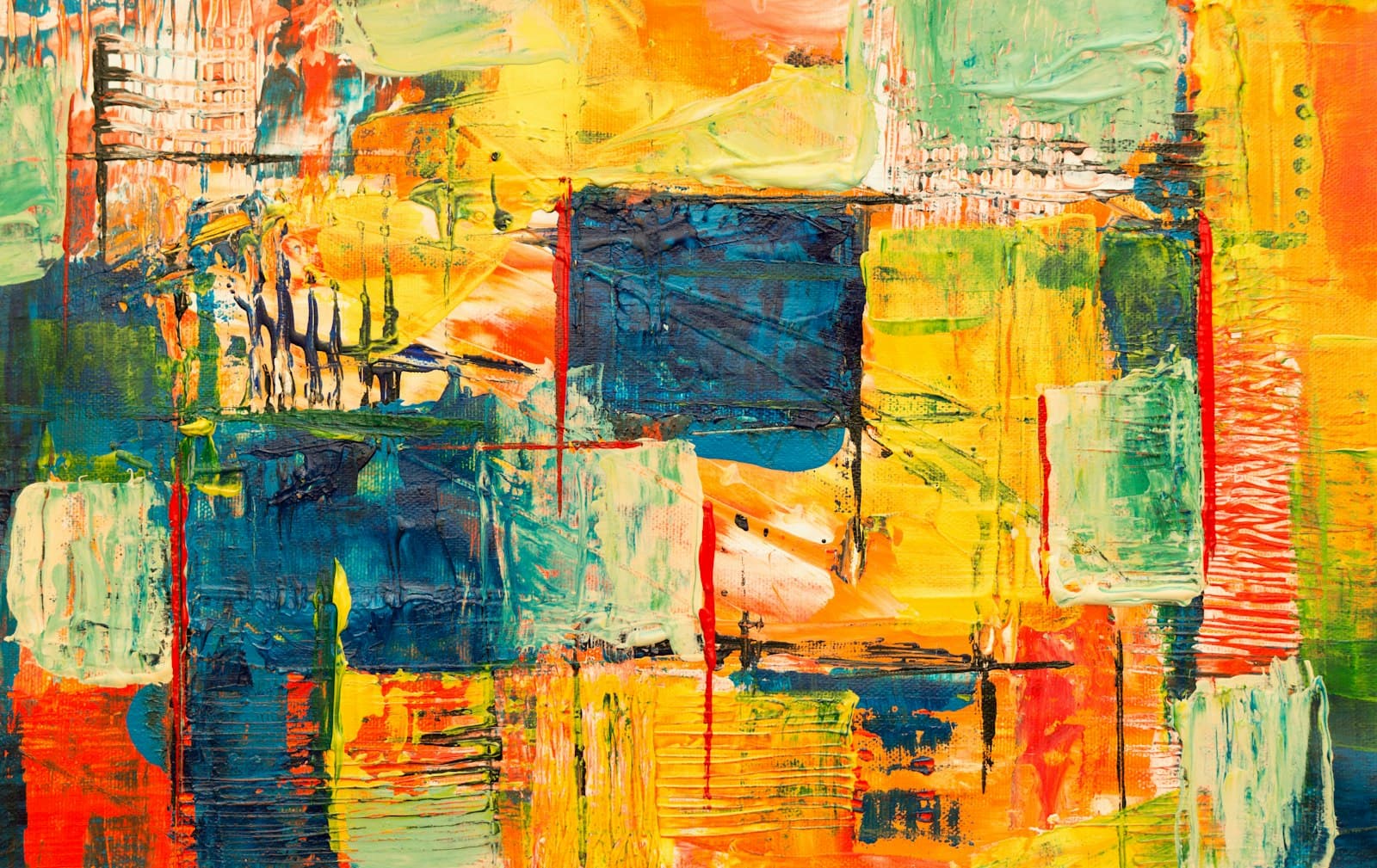
You have a photo you love — a portrait, a pet, a street corner at golden hour — and you want it on the wall as a painting, not pinned to a camera roll. Commissioning a real oil portrait costs hundreds and takes weeks. Running the photo through a generic "art filter" gives you a smeared version of the same photo, which is worse than nothing. The middle path is an AI generator that actually repaints the image: same subject, new medium, real painterly decisions about brushwork and light.
This guide walks through the whole process, from choosing the right source photo to fixing the two failure modes that make AI paintings look like filters.
What makes a photo work as an oil painting?
Not every photo converts equally well, and choosing the right source is half the result. Oil painting as a medium loves three things:
- A clear subject. One person, one animal, one building. Classical portraiture rarely crams five subjects into a frame, and the model follows that convention — busy group shots come back muddled.
- Directional light. A face lit from a window, a landscape under low sun. Oil painting's signature is chiaroscuro — strong light against deep shadow — and the model can only paint that drama if the photo contains it. Flat overhead lighting produces flat paintings.
- Simple backgrounds. Cluttered backgrounds turn into cluttered brushwork. A photo with natural depth of field, where the background already falls away, converts far more gracefully.
If your photo breaks these rules, it can still work — but expect to crop first. Cutting a portrait out of a group shot before uploading beats asking the model to figure out who matters.
How do I actually convert the photo?
The workflow in Imageny's playground takes about a minute:
- Upload the photo as a reference image. This anchors the composition, the subject's likeness, and the pose — the parts you want preserved.
- Select the oil painting style preset. The oil painting style adds the medium's whole vocabulary for you: impasto texture, glazed color layers, canvas surface, old-master lighting. You don't need to describe any of that yourself.
- Write a short prompt describing what should change. Not what's in the photo — the model can see that. Describe the painting you want:
classical portrait, warm candlelight from the left, dark muted background, visible thick brushstrokes. - Generate a batch. Brushwork interpretation varies noticeably between generations, so a batch of four gives you a real choice instead of a single roll of the dice.
The division of labor is the key idea: the reference image holds what the picture is, the style preset holds what medium it's in, and your prompt only has to cover mood and lighting. Prompts that try to do all three jobs at once fight themselves — more on that in our prompt-writing guide.
Why does my result still look like a filtered photo?
This is the most common complaint, and it has two usual causes.
The likeness is too strong. If the output keeps photographic skin texture and sharp lens detail under a thin coat of brushstrokes, the generation leaned too hard on the reference. Push the prompt further toward the medium: heavy impasto, loose expressive brushwork, painted texture throughout — and name a tradition, like in the style of classical Dutch portraiture or loose impressionist handling. Style keywords carry more weight than most people expect.
The palette is still a photo palette. Cameras capture thousands of colors; painters mix a dozen. Ask for the painter's version: limited warm palette, earth tones, muted background. The moment the colors simplify, the image stops reading as a photo.
If instead the opposite happens — the painting drifts so far it no longer looks like your subject — shorten the prompt and let the reference image do more of the work. You're steering between two poles, and the prompt length is the steering wheel.
What should I make with it?
The obvious answer is wall art — generate at up to 4K and the result prints cleanly at poster size. But converted paintings also work as gifts (a painted version of someone's pet is a reliable win), as profile pictures with more character than a photo, and as a house style for a set: run family photos through the same style and prompt, and you get a gallery wall that looks commissioned as a series.
If oil isn't quite the mood, the same photo-plus-style workflow applies to every preset — watercolor reads softer and more modern, and the portrait style keeps things closer to realism with painterly polish.
Paint your first photo
Pick one photo with a clear subject and real light, open the playground, upload it with the oil painting style, and describe only the mood. Generate four, pick the one with the boldest brushwork, and you'll have a painting before your coffee cools.
Cover photo by Steve A Johnson on Unsplash.