
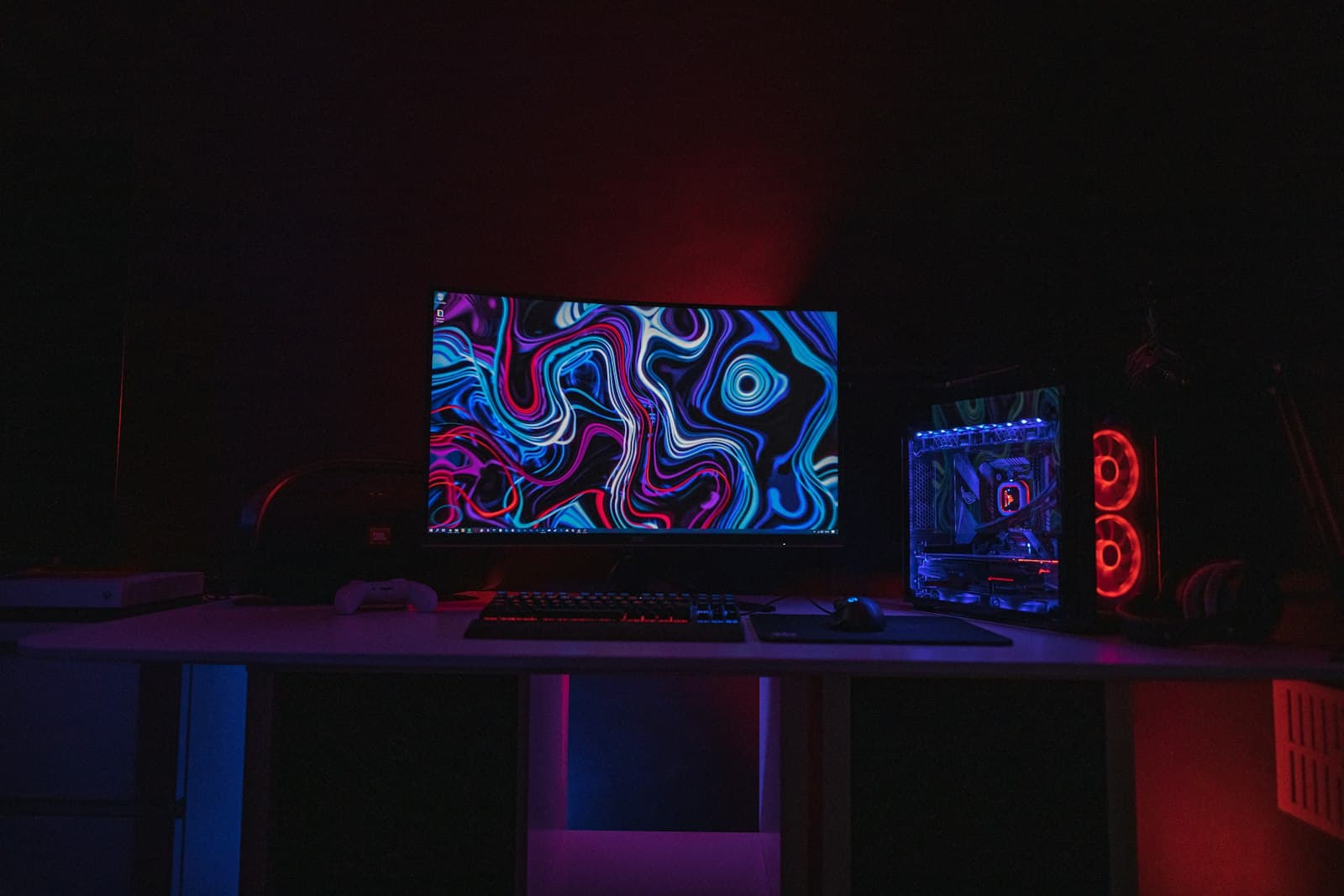
Most anime wallpapers you generate look great in the preview and wrong on the actual screen. The character's face lands under the clock, the composition was built for a square but your monitor is wide, and the icons on your home screen sit on top of the most detailed part of the image. A wallpaper isn't just a nice picture — it's a picture designed around the furniture your screen puts on top of it.
This guide covers the three things that make an anime wallpaper actually fit: the right aspect ratio, deliberate empty space, and detail that holds up at full resolution. All of it runs in Imageny's image generator.
What aspect ratio should an anime wallpaper be?
This is the decision people skip, and it's the one that causes the most re-work. Generate at the wrong ratio and the wallpaper gets cropped or stretched to fit, which ruins the composition either way.
- Desktop and laptop: 16:9 is the safe default for most monitors. Ultrawide screens want 21:9. Set this before you prompt, not after.
- Phone: modern phones are tall — 9:19.5 or 9:20. A 9:16 generation is close enough for most and a good starting point.
- Tablet: closer to 4:3 or 3:4 depending on orientation.
The playground exposes aspect ratio as a setting, so pick your screen's shape there rather than generating a square and cropping. Cropping throws away pixels you paid to generate and moves your carefully framed subject off-center.
How do I leave room for icons and widgets?
A wallpaper shares the screen with clocks, icons, and widgets, and those live in predictable places. Design around them by prompting for composition, not just subject:
- Phone wallpapers need a clean top third (clock and notifications) and a clean bottom third (dock and app rows). Prompt
character in the lower-center, clean simple sky in the upper third, minimal detail at the bottomto keep the busy part in the middle band where nothing covers it. - Desktop wallpapers collect icons down the left side and along the bottom. Prompt
subject on the right side, calm negative space on the leftso the icons sit on quiet area instead of the character's face.
This is the same rule-of-thirds thinking the anime PFP guide uses for avatars, applied to a different set of constraints. In both cases you're composing for how the image gets used, not just how it looks alone.
What prompts make good anime wallpaper scenes?
Wallpapers favor atmosphere over action — you look at them all day, so calm usually beats busy. A few directions that consistently work, each pairing a subject with mood and the style keywords from our anime styles guide:
- Scenic and quiet:
a girl watching the sunset from a rooftop, anime watercolor style, warm orange sky, soft clouds, wide shot, calm negative space on the left - Cozy interior:
a cat sleeping by a rainy window, cozy anime style, warm indoor lighting, muted palette, plants on the sill - Cyberpunk mood:
a neon city skyline at night, cyberpunk anime style, magenta and cyan glow, clean sky in the upper third— see the cyberpunk guide for the full lighting recipe. - Minimal and clean:
a lone figure under a huge starry sky, flat anime style, deep blue palette, lots of empty space
Notice how each one names where the empty space goes. That single habit is what turns a nice illustration into a wallpaper that works.
How do I keep the wallpaper sharp on a big screen?
A wallpaper fills your entire display, so any softness that a small image would hide becomes obvious. Two things keep it crisp:
- Generate at the highest resolution available. A wallpaper stretched past its native size goes soft. Start large so the pixels are there to fill the screen.
- Favor simpler compositions for large screens. Fine, dense detail is where upscaling artifacts show first. Bold shapes and clean gradients scale up cleanly; a thousand tiny background elements do not.
If a wallpaper looks slightly soft once it's on your screen, regenerate at a larger size before reaching for any other fix — resolution is almost always the cause.
Make one that fits your screen
Open the playground, set your screen's aspect ratio first, and pick one of the scene prompts above — then adjust the empty-space direction to match where your icons live. Generate at the largest size available, and you'll have a wallpaper that fits the screen instead of fighting it. Pick a plan or a credit pack when you sign up and you're ready to generate.