
You generate an AI video and the subject moves fine — but the shot feels dead. A character stands in a beautiful scene, the scene animates, and it still looks like a screensaver. The missing ingredient is usually not the subject or the style. It's the camera. In real film, the camera is a character: it approaches, retreats, circles, and shakes. In AI video, if you don't tell the model what the camera does, you get the default — a locked-off tripod shot — for everything.
Camera motion is also the cheapest upgrade available, because it changes the entire feel of a clip without touching your prompt, your style, or your reference image. In Imageny's video generator, it's a preset picker: fifteen motions, one click. This guide explains what each one actually does and when to reach for it.
What do the camera motion presets actually mean?
The names come from a film set, and each maps to a physical rig. Knowing the physical version tells you what the AI version will feel like.
Static — the tripod. No camera movement; only the subject moves. Best when the action itself is busy (a fight, falling rain, a crowd) and extra motion would turn to mush.
Pan left / pan right — the camera stays in place and rotates horizontally, like turning your head. Use it to reveal a landscape or follow a subject crossing the frame.
Tilt up / tilt down — the same rotation, vertically. Tilt up sells scale: a tower, a mecha, a waterfall. Tilt down works for reveals — from a character's face to the object in their hands.
Zoom in / zoom out — the lens magnifies while the camera stays put. Flatter and more artificial-feeling than a dolly, which is sometimes exactly the point: zooms read as dramatic emphasis.
Dolly in / dolly out — the whole camera physically moves forward or backward. Perspective shifts as it moves, so foreground and background separate. Dolly in builds intimacy or tension; dolly out reveals context and works as an ending.
Orbit — the camera circles the subject. The showpiece move for a character turnaround or a product-style hero shot, because it shows three dimensions of something you generated in two.
Crane up / crane down — the camera rises or descends through space, like the end of a movie scene where the camera lifts away from the action. Crane up out of a scene is the classic closing shot.
Tracking — the camera travels alongside a moving subject: a character walking, a car, a running animal. If your prompt describes movement across space, tracking keeps the subject framed while the world slides past.
Handheld — adds the small, human shake of a camera held in hands. Instantly makes a scene feel documentary, urgent, or nervous. Pairs well with horror and action.
Drone — a high, flying viewpoint that glides. The go-to for establishing shots of cities, coastlines, and fantasy landscapes.
How do you choose the right motion for a shot?
Ask what the shot is for. A useful shorthand from film grammar:
- Establishing a place → drone, crane down, or a slow pan.
- Introducing a character → dolly in or orbit.
- Action and urgency → tracking or handheld.
- Emotion and emphasis → dolly in (toward the face) or zoom in.
- Ending a scene → dolly out or crane up.
Then apply the one rule that saves the most credits: one motion per clip. Generated clips run seconds, not minutes — enough time for a single camera idea to read clearly. Motion that would need a cut in real film needs a second generation here. If you want a dolly in and an orbit, that's two clips, and they'll edit together better than one clip trying to do both.
Match intensity, too. Gentle subjects suit gentle moves — a watercolor scene with a slow pan, not a drone dive. A cinematic-style action frame can absorb tracking and handheld shake that would wreck a quiet portrait.
Does camera motion work with image-to-video?
Yes, and this is where presets earn their keep. When you animate an existing image — your own generation or an upload — the picture already fixes the subject, style, and composition, so the camera motion is the creative decision. The same illustration becomes a reveal with dolly out, a character turnaround with orbit, or an establishing shot with crane down. Our image-to-video guide covers the workflow end to end.
One practical note for text-to-video: keep camera language out of the text prompt when you're using a preset. Writing "the camera slowly zooms in" while selecting pan right gives the model two contradictory directors. Describe the scene and subject in the prompt; let the preset drive the camera. For prompt-side fundamentals, see the anime video prompt ideas collection — every idea there can be re-shot with a different motion.
Direct your next shot
Take a clip you've already generated with a static camera, regenerate it with a dolly in, and compare the two side by side — the difference is the fastest film-school lesson available. Open the video generator, pick one motion with intent, and your clips stop looking like moving wallpapers and start looking like shots.
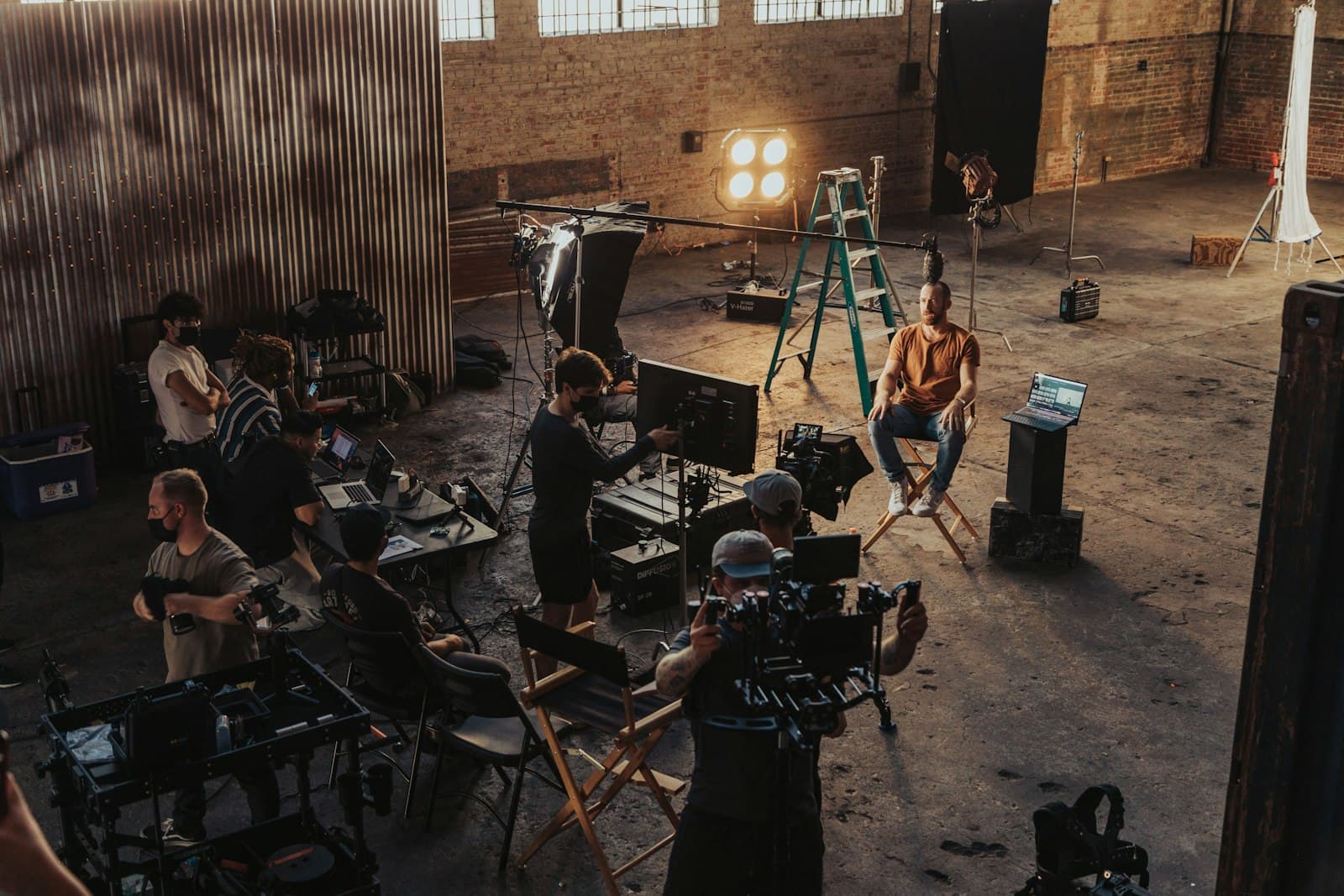
Cover photo by Jakob Owens on Unsplash.